WikiFree learning paths / 04 · The analyst’s ledger
The analyst’s ledger
A trustworthy workbook explains its own numbers.
Build an operations tracker with clean inputs, tested formulas and a summary that distinguishes missing reports from zero hours.
The weekly operations ledger
Numbers with a trail.
- Beginner
- starting level
- 1
- core course
- ≈13h
- learning + practice estimate
- 5 + 1
- stages + final project
The practical outcome
What you will be able to show
Build an operations tracker with clean inputs, tested formulas and a summary that distinguishes missing reports from zero hours.
For: Beginners who can open a file and enter text.
Before you begin: A computer and a spreadsheet editor. The selected videos demonstrate Excel 365; you can complete the core logic in free LibreOffice Calc. Expect different menu names.
Original pathway and exercises by WikiFree Editorial. Course pages and official source metadata reviewed on 12 October 2026. Version 1.0.
A ten-minute starting check
Try these before opening a lesson
Answer in your own words, then reveal the guidance. If you can already demonstrate a stage’s completion gate with evidence, skim its lesson assignment and move to the next stage.
What is the difference between an empty Actual Hours cell and 0?
Empty means unreported; 0 means a reported value of zero.
If =D6*E6 is copied down one row, what happens?
The relative references become D7 and E7.
Does formatting 0.2 as a percentage change its value?
No. It displays 20%, while the underlying value stays 0.2.
Sequence with a purpose
Build one layer at a time
- 01Design the input tableA clean task table.
- 02Write formulas you can explainA formula column and a three-row inspection note.
- 03Make errors visibleA validation checklist and a filtered exceptions view.
- 04Summarize without concealing gapsA team dashboard with an explicit completeness note.
- 05Test the workbook as a systemA four-test record and a clean handover copy.
Finish with the capstone. Progress means a reviewable output, not simply a watched video.
A deliberately short course list
Use these courses for these reasons
Excel 365 for Beginners: Free Course
Simon Sez IT · Beginner · English
This beginner sequence covers the workbook, formulas, references, tables and filtering in one place. Selected lessons avoid repeating the same features across multiple long courses.
Assigned viewing: 1h 31m 33s. The full source course contains additional material.
Open the WikiFree course and official learning route ↗Free learning, clearly defined
Video viewing is free. Desktop Excel 365 may require a license; do not buy it just for this path. LibreOffice Calc provides a free route for the common formulas and tracker. Excel Tables and ribbon steps differ in other tools. No course certificate is included.
Skills and evidence
| Stage / skill | Learning support | Evidence to produce |
|---|---|---|
| 01 · Design the input table | Simon Sez IT selected lessons | A clean task table. |
| 02 · Write formulas you can explain | Simon Sez IT selected lessons | A formula column and a three-row inspection note. |
| 03 · Make errors visible | Simon Sez IT selected lessons | A validation checklist and a filtered exceptions view. |
| 04 · Summarize without concealing gaps | WikiFree original bridge lesson | A team dashboard with an explicit completeness note. |
| 05 · Test the workbook as a system | WikiFree original bridge lesson | A four-test record and a clean handover copy. |
Stage 1 / The analyst’s ledger
Design the input table
You will: Create one consistent row per task.
Assigned learning
Excel 365 for Beginners: Free Course
- Lesson 5 · Navigating Workbooks and Ribbons
- Lesson 11 · How to Organize, Color, and Copy Your Worksheets
- Lesson 13 · Enter and Format Text, Numbers, and Dates
Use the names if the provider later changes the order. Only these assignments enter the core estimate.
Write the schema before adding color: Task ID, Team, Task, Planned Hours, Actual Hours, Status and Note. A stable ID lets a reviewer trace a row after sorting. Keep one header row, no merged cells in the data area, and one meaning per column.
Separate inputs from results. The companion workbook marks editable inputs in pale amber and places formulas in plain result cells. Blank actual hours are intentionally preserved.
Make something reviewable
Create twelve rows from the case pack. Set readable widths, freeze the header and format hours as numbers. Mark which columns people are allowed to edit.
Deliver: A clean task table.
Completion gate
Every task has a unique ID and one team; numbers are numeric; sorting never separates a task from its values.
If you get stuck: If dates or numbers are stored as text, fix the import/type before formatting. A pretty number format cannot repair a text value.
Stage 2 / The analyst’s ledger
Write formulas you can explain
You will: Use arithmetic and cell references safely.
Assigned learning
Excel 365 for Beginners: Free Course
- Lesson 16 · Mastering BODMAS in Excel Calculations
- Lesson 18 · Learn the Most Essential Formulas and Functions
- Lesson 19 · Absolute vs. Relative Cell Referencing
- Lesson 22 · Exercise for Formulas, Functions, Auto-Fill and Autosum
Use the names if the provider later changes the order. Only these assignments enter the core estimate.
Planned and actual hours answer different questions. Variance equals Actual − Planned, so a positive result means more time used than planned. Calculate variance only when both inputs exist: =IF(COUNTBLANK(D6:E6)>0,"",E6-D6).
Relative references move when copied; absolute references stay anchored. Before filling down, predict the formula in the last row. If a formula is meant to point at a shared assumption, lock that reference with dollar signs.
Make something reviewable
Write the variance formula, fill it through all task rows and inspect the first, middle and last formulas. Change one actual value by 2 and predict every result that should change.
Deliver: A formula column and a three-row inspection note.
Completion gate
Missing reports stay blank; a reported zero produces a real negative variance; copied formulas use the correct row.
If you get stuck: If every result points to the first task, remove accidental absolute row references. If blanks become negative planned values, add the missing-input condition.
Stage 3 / The analyst’s ledger
Make errors visible
You will: Use filtering and validation to protect the table.
Assigned learning
Excel 365 for Beginners: Free Course
- Lesson 34 · Quick Guide on Excel Tables
- Lesson 35 · Table Creation and Style Customization
- Lesson 44 · Single-Level Sort
- Lesson 47 · How to Filter Your Excel Lists
Use the names if the provider later changes the order. Only these assignments enter the core estimate.
A table or clearly bounded data range reduces selection mistakes. Filter to find empty reports, inconsistent team names and impossible negative hours. Use a short list for team and status entry; validation reduces mistakes but does not replace an audit of pasted data.
Never sort one column alone. Sort the full table so each task keeps its identity. Keep notes factual: explain why a number is missing, rather than hiding the row.
Make something reviewable
Create Team choices Support, Content and Operations, and Status choices Planned, In progress and Done. Try a negative actual value and a misspelled team in a copy, then record how you detect or reject them.
Deliver: A validation checklist and a filtered exceptions view.
Completion gate
A reviewer can find every missing report and spot invalid categories before using the dashboard.
If you get stuck: If pasted values bypass a dropdown, filter unique labels and compare them with the approved list. Add a separate exception check instead of trusting the UI alone.
Stage 4 / The analyst’s ledger
Summarize without concealing gaps
You will: Build an honest team dashboard.
Original WikiFree bridge lesson
Use SUMIFS to total hours for a named team and COUNTIFS to count its tasks or missing reports. Example: =SUMIFS(Tracker!$D$6:$D$17,Tracker!$B$6:$B$17,A6). Lock the source ranges so copied summary formulas still refer to every task.
Label the actual-hours total “Known actual hours.” Next to it show the count of unreported tasks. A total can be arithmetically correct and still be incomplete. A chart should compare planned with known actual hours and repeat that caveat.
Make something reviewable
Build one summary row per team with planned hours, known actual hours, task count and missing reports. Add one simple chart or labeled bar display; keep the source table visible.
Deliver: A team dashboard with an explicit completeness note.
Completion gate
The summary agrees with independent totals and reports two missing actual-hour entries in the supplied case.
If you get stuck: If a total is zero for a team with work, check spaces and spelling in the criteria. If totals ignore the last row, repair the range before adding more tasks.
Stage 5 / The analyst’s ledger
Test the workbook as a system
You will: Demonstrate that changes propagate correctly.
Original WikiFree bridge lesson
A useful workbook test changes an input and predicts a result. Pick a task with a reported value, add 2 hours, and expect both its variance and its team total to rise by 2. Restore the original value. Then enter zero into one previously blank actual cell: the known total should stay the same, but the missing-report count should fall by one.
Check the boundary of the data range when adding a row. The supplied reference deliberately uses twelve explicit rows so you can see and extend every dependency.
Make something reviewable
Run the change, blank-to-zero, invalid-category and new-row tests. Save a restored version and write a short handover guide with the data-range limit.
Deliver: A four-test record and a clean handover copy.
Completion gate
All expected changes are observed; the final copy contains original inputs; the next person knows how to extend formulas and summary ranges.
If you get stuck: If only some totals change, compare source ranges and formula cells. Do not fix a dashboard by typing over a formula.
Original practice material
Your case pack and reference checks
Download the editable plain-text workbook, or open the full copy below. It contains the case inputs, templates and reference guidance. Try the exercises before reading the answers.
Download the practice workbook ↓ Download project files (ZIP) ↓Open the complete workbook in this page
WIKIFREE / THE ANALYST'S LEDGER
Original synthetic training case. Version 1.0 — 12 October 2026.

INPUT CSV (blank actual hours means unreported, not zero)
task_id,team,task,planned_hours,actual_hours,status,note
T01,Support,Inbox triage,4,5,Done,
T02,Support,Help article,3,2,Done,
T03,Support,Follow-up calls,4,,In progress,Report pending
T04,Support,Queue review,2,0,Planned,Reported zero
T05,Content,Lesson edit,6,7,Done,
T06,Content,Source check,4,3,Done,
T07,Content,Image captions,3,,In progress,Report pending
T08,Content,Proofread,2,2,Done,
T09,Operations,Schedule setup,5,4,Done,
T10,Operations,File audit,3,3,Done,
T11,Operations,Access review,4,5,Done,
T12,Operations,Weekly handover,2,2,Done,

BUILD
Use columns A:G for the seven inputs, H for Variance and I for Report. Put headers on row 5
and the twelve tasks on rows 6:17. Keep input cells visually distinguishable.
H6 formula:
=IF(COUNTBLANK(D6:E6)>0,"",E6-D6)
Copy the valid formula down. Do not type over calculated results.
I6: =IF(COUNTBLANK(E6)>0,"Missing","Reported")

DASHBOARD
With a team name in A6:
Planned hours: =SUMIFS(Tracker!$D$6:$D$17,Tracker!$B$6:$B$17,A6)
Known actual hours: =SUMIFS(Tracker!$E$6:$E$17,Tracker!$B$6:$B$17,A6)
Task count: =COUNTIF(Tracker!$B$6:$B$17,A6)
Missing reports: =COUNTIFS(Tracker!$B$6:$B$17,A6,Tracker!$I$6:$I$17,"Missing")
Show missing reports next to known actual hours; the comparison is incomplete.
Excel uses commas in these examples. Some spreadsheet locales use semicolons.

EXPECTED ORIGINAL RESULTS
Support: planned 13, known actual 7, 4 tasks, 1 missing report.
Content: planned 15, known actual 12, 4 tasks, 1 missing report.
Operations: planned 14, known actual 14, 4 tasks, 0 missing reports.
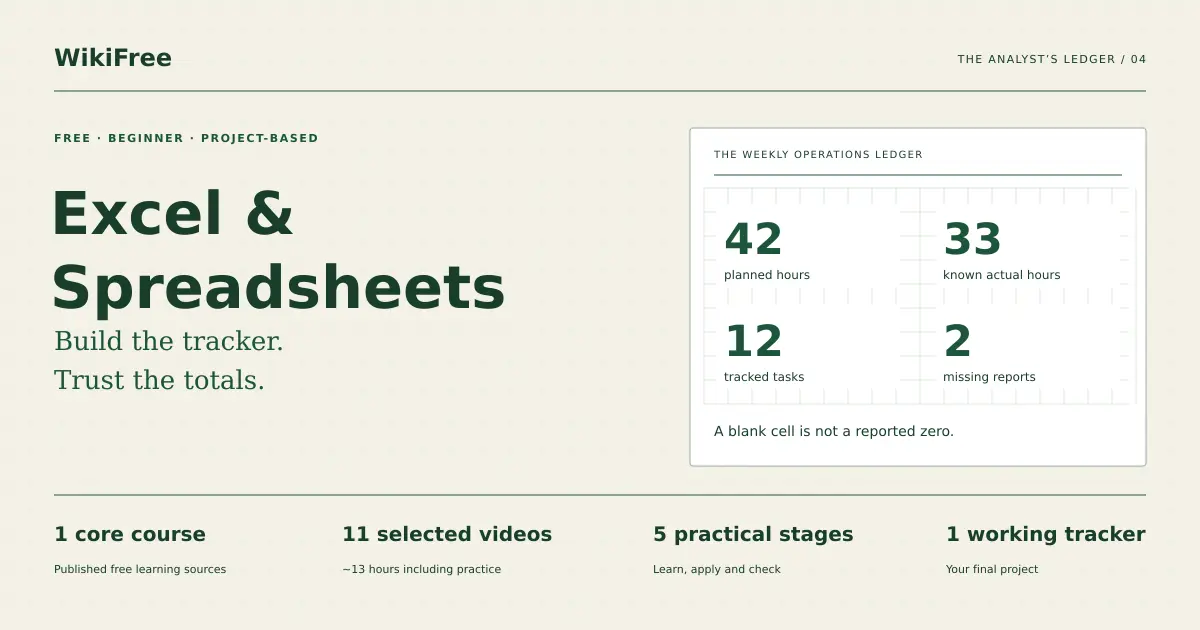
All teams: planned 42, known actual 33, 12 tasks, 2 missing reports.

TEST LOG TEMPLATE
Input changed | Predicted affected cells | Observed results | Restored?
1. T01 actual 5 -> 7: Support and grand known-actual totals rise by 2.
2. T03 blank -> 0: missing count falls by 1, known actual stays unchanged.
3. Invalid team label: validation or exception review must identify it.
4. Add T13 below the range: extend formulas and summary ranges; verify totals.

HANDOVER
State which fields are editable, how to extend beyond row 17, which values are
still missing and which application/version you used. The reference XLSX is a
comparison aid. The formulas above let you build the exercise independently.
The delivery package also includes a formatted reference XLSX. The full input table and every required formula are available in the workbook above, so you can complete the project independently in your chosen spreadsheet tool.
Case data, exercises and reference examples: WikiFree Editorial, original training material. Provider lessons are linked, not reproduced.
Final project / 3h practice estimate
The twelve-task operations ledger
Build your own tracker from the supplied inputs before opening the reference workbook. Hand it to a teammate with a one-page operating guide.
Your handover package
- Tracker with validated inputs and guarded variance formulas
- Team dashboard with known actual hours and missing-report counts
- A readable chart or bar display with an incompleteness note
- Four meaningful tests and instructions for adding tasks
| Criterion | Points | Evidence expected |
|---|---|---|
| Input structure | 20 | Unique IDs, consistent types and clear editable fields. |
| Formula correctness | 35 | References, missing values and totals behave correctly. |
| Dashboard clarity | 25 | Team comparisons show missing reports and use accurate labels. |
| Testing and handover | 20 | Mutation and new-row tests are documented and restored. |
Completion standard: aim for at least 80/100, with all critical gates met. A reviewer awards each row’s points in proportion to the evidence shown. This is a learning rubric, not a provider credential.
A formula error, hidden missing report or unreconciled total blocks completion.
A pace that leaves room to practice
Plan the next few weeks
Assigned viewing: 1h 31m 33s. Practice and capstone: 11.0 hours, editorial estimate. Budget about 13 hours overall. Replays and personal adaptations can take longer.
| Available time | Flexible estimate | How to use it |
|---|---|---|
| 2 hours/week | 7 weeks | Reserve time to make the output and pass its gate; split a long lesson across sessions. |
| 5 hours/week | 3 weeks | Reserve time to make the output and pass its gate; split a long lesson across sessions. |
| 10 hours/week | 2 weeks | Reserve time to make the output and pass its gate; split a long lesson across sessions. |
The calculation stays in your browser. The estimates above remain usable without JavaScript.
Checkbox progress is saved only in this browser when local storage is available. It is not sent to WikiFree or synchronized to an account.
Questions before you continue
Is Microsoft 365 required?
The video interface is Excel 365, but the assessed formulas and tracker can be built in LibreOffice Calc. Exact menus, chart rendering and Excel Table behavior may differ.
Why does the reference use fixed ranges?
It makes dependencies visible to a beginner. Extending the range and testing the added row is part of the assignment, not an automatic promise.
Sources and honest boundaries
What was checked, and what comes next
Pivot tables, Power Query, VBA and financial modeling are not required. The original dashboard exercise adds SUMIFS and COUNTIFS explanations rather than attributing those instructions to an unverified video lesson.
The complete published WikiFree course catalog was checked on 12 October 2026: 815 courses across nine API pages. Course pages and official playlist metadata or module headings were inspected. This does not mean every video was played to completion, every geographic region was tested, or a provider credential was earned.
Keep the published course pages as your route into provider material. Access, lesson order and tool interfaces can change. Report a broken route through WikiFree’s correction page.
Questions & discussion
Share a useful question or correction. Comments appear after moderation. Please avoid personal or sensitive information.